The Geek Bar Mate 60K is a two-part device, and that is why its problems can be confusing. A fault might sit in the main unit, the pod, the connection between them, or the charging setup. This guide explains how the device is put together, what to do when you want it “off,” why the battery can seem to drain fast, and how to work through pod and charging problems in a sensible order. It also tells you when to stop troubleshooting and contact support.
Quick Answers
- How does the Mate 60K work? A reusable main unit holds the screen and a 900mAh battery, and a replaceable pod holds the liquid, coil, and a 200mAh battery.
- Can you turn it off? No full shutdown shortcut is confirmed, so we do not guess at button combos.
- Why is the battery draining fast? Mode, usage style, and how “puffs” are rated all matter.
- Why is the pod not working? Start with the pod-to-unit connection and charge level.
How Does the Geek Bar Mate 60K Work?
The Mate 60K is a modular disposable system. Instead of throwing away the whole device when it runs out, you replace the pod and keep the main unit. That makes it easier to figure out where a problem lives.
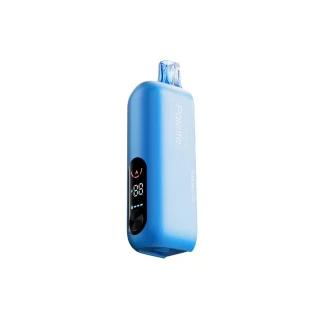
- Main unit: the reusable part. It contains the 900mAh battery, the screen, and the USB-C charging port.
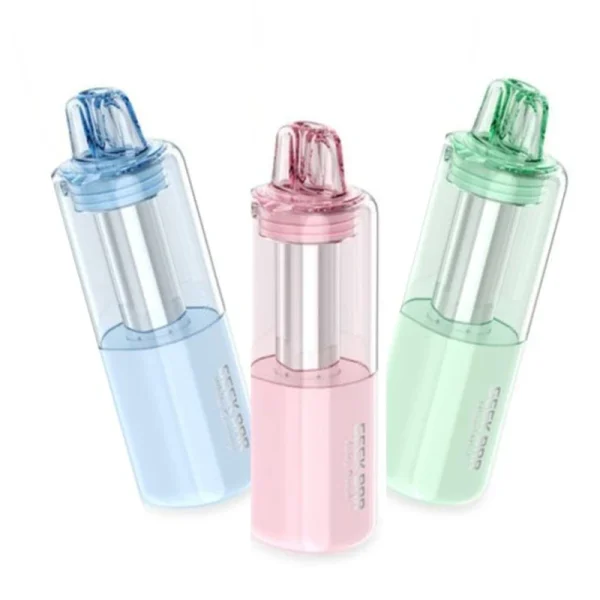
- Pod: the replaceable part. It holds the e-liquid and the coil, and it has its own 200mAh built-in battery.
- Contacts: small metal connection points where the pod meets the main unit. If these do not line up or get dirty, the device may not recognize the pod.
- Screen and modes: the display shows device information, and the device offers a Regular mode and a Pulse mode.
- Draw activation: the device is draw-activated, so you inhale to use it rather than pressing a fire button.
Important: the pods are sold as “requires kit for use.” That means a pod cannot work on its own. You need the main unit.

How to Turn Off the Geek Bar Mate 60K
People searching for this are usually asking one of three different questions. Separating them clears up most of the confusion.
1. Turning off the device
We have no verified full-shutdown shortcut for the Mate 60K, so we will not give you a specific number of button presses or a hold time. Guessing could lead you to change settings you did not mean to change. Because the device is draw-activated, it does not fire unless you inhale. For a complete shutdown, the reliable options are to follow the instructions that came with your device or to detach the pod so the main unit has nothing to activate.
2. Turning off Pulse Mode
Pulse Mode and Regular Mode are different performance settings. They are not the same thing as turning the device off. If you want to leave Pulse Mode, you are switching modes, not powering down. Check the on-screen mode indicator to see which mode you are in, and use the controls described in your device’s instructions to change it.
3. Turning off the screen
A dark screen does not prove the device is off. Screens can dim or go dark on their own to save power, while the device stays ready to respond to a draw. If the screen is dark and the device will not respond at all, that is a different issue, and the pod and charging sections below apply.
| What you want | What it actually means | What to do |
|---|---|---|
| Turn off the device | Full shutdown | Follow the device instructions; detach the pod if you want it inactive |
| Turn off Pulse Mode | Switch to Regular Mode | Change modes and check the screen indicator |
| Turn off the screen | Display going dark | Not the same as power off; the device may still respond |
Why Is My Geek Bar Mate 60K Battery Draining So Fast?
This is the most common complaint, and it often comes down to expectations. Understanding what the battery system is, and what “60,000 puffs” really means, explains most of it.
Understanding the 900mAh + 200mAh Battery System
The Mate 60K uses two batteries. The 900mAh battery lives in the reusable main unit. The 200mAh battery is built into each pod. Together they support the device, which is why the product is described as a dual-battery system.
Here is the part people miss: a battery capacity figure is not a runtime. A milliamp-hour number tells you how much charge a battery can hold, not how many hours or puffs you will get. How long a charge lasts depends on how you use the device, which mode you pick, how long and how often you draw, and the temperature around you.
Also, because each pod carries its own battery, a fresh pod brings fresh pod-side capacity. If drain seems worse with one particular pod than another, the pod may be a factor.
Regular Mode vs. Pulse Mode
Modes change how the device behaves, and a higher-performance setting generally uses more energy. The rated “up to 60,000 puffs” is a manufacturer estimate. It is not a guarantee, and your real result can be lower, especially if you spend most of your time in the stronger mode or take long draws.
| Factor | Effect on battery life |
|---|---|
| Staying in Pulse Mode | Likely drains faster than Regular Mode |
| Long, frequent draws | Uses more energy per session |
| Cold environments | Batteries often perform worse in the cold |
| Rated puff count | An estimate; real results vary by use |
| Older or heavily used unit | Charge may not last as long as when new |
If you want to stretch the charge, try Regular Mode for everyday use, keep draws shorter, and avoid leaving the device somewhere very cold or hot.
When Fast Battery Drain May Indicate a Fault
Some variation is normal. A fault looks different. Be concerned if you notice any of the following:
- The device gets hot during normal use or while sitting idle.
- The casing looks swollen or bulged.
- The body is cracked, dented, or damaged.
- Charging behaves strangely, such as becoming hot or stopping and starting repeatedly.
- The charge collapses suddenly compared with how it behaved before.
If you see heat, swelling, damage, or abnormal charging, stop using the device and contact the seller or manufacturer’s support. Do not keep testing it, and do not try to open it.
Geek Bar Mate 60K Pod Not Working? Common Causes
When a pod will not work, the cause is often simple. Work down this table from the easiest check to the most serious. If you have not read it yet, the Mate 60K and Foger Switch Pro 30K compatibility guide explains which pods pair with which units.
| What you see | What to check |
|---|---|
| Screen will not light | The main unit’s power and charge state; try charging it |
| Pod not recognized | Whether the pod is fully seated and the contacts are lined up and clean |
| Device flashing | Any message or indicator on the screen that you can verify |
| Leaking or unusual heat | Stop using it and contact support |
Screen will not light
Start with charge. Plug the main unit into a power source with a known good cable and give it time. A depleted battery is the most common reason for a dead screen.
Pod not recognized
Remove the pod and reseat it firmly, making sure it clicks fully into place. Look at the contacts on both parts. If they are visibly dirty or wet, let them dry and wipe them gently with a dry, clean cloth. Make sure you are using a pod made for the Mate 60K, since the pods are sold as requiring the matching kit.
Device flashing
Flashing can mean different things, and we cannot confirm a code list for this device. Look at what the screen actually shows. If there is a message or a symbol, note it. Then try the basics: reseat the pod, charge the main unit, and test again. If flashing continues, contact support and describe exactly what you saw.
Leaking or unusual heat
Stop using the device. Liquid in the wrong place or heat that should not be there are safety concerns, not routine fixes. Do not continue to use it, and do not attempt to open or modify it.
What not to do: do not take apart the battery, rewire anything, or try to bypass built-in protections. These are not troubleshooting steps. They are hazards.
Geek Bar Mate 60K Charging Problems
The main unit charges through its USB-C port. If it will not charge, check only the things that are safe and simple:
- The cable: try a different USB-C cable. Cables wear out and some are charge-limited.
- The power source: try another adapter or port. A weak or faulty source can fail to charge the device.
- The charging port: look for lint, debris, moisture, or bent or damaged parts. Do not poke at the port with metal objects.
- Heat: if the device or charger becomes unusually hot, unplug it right away.
- Leaving it to charge: give it a little time before deciding it is dead, since a deeply drained battery may take a moment to show signs of life.
We are not giving a charging time here, because we do not have an official figure and it varies with the adapter and cable you use. Rather than relying on a promised number, watch the device for normal behavior while it charges. If it never responds, or it heats up, stop and contact support.
When Should You Stop Troubleshooting?
Some problems are not worth fixing at home. Stop using the device and contact the manufacturer or the retailer you bought it from if you see:
- A swollen or bulging battery or casing.
- Heat that persists during use, idling, or charging.
- Liquid that has gotten into the electronic parts or the charging port.
- A cracked, dented, or otherwise damaged body.
- The same problem coming back again and again after the basic checks.
When you contact support, mention what the screen showed, which pod you were using, what you tried, and when you bought it. Keep the packaging and any order information handy. Dispose of damaged or unwanted batteries through an electronics recycling program rather than in the household trash.
Geek Bar Mate 60K FAQs
Does the Geek Bar Mate 60K have a power button?
We cannot confirm a dedicated power button or a full-shutdown shortcut, so we will not invent one. The device is draw-activated, meaning it responds when you inhale. Check the instructions that came with your device for the exact controls.
Why does my Mate 60K screen keep flashing?
Flashing can point to several things, including a poorly seated pod or low charge. Reseat the pod, charge the main unit, and read whatever the screen displays. If it keeps flashing, contact support and tell them what you saw.
Why is my Mate 60K not charging?
Try a different USB-C cable and a different power source, then check the port for debris or moisture. If the device or charger gets hot, unplug it. If nothing works, stop and contact support.
Does the Mate 60K pod have its own battery?
Yes. Each pod has a built-in 200mAh battery, and the reusable main unit has a 900mAh battery. The pod cannot be used on its own, because it is sold as requiring the kit.
Related Reading
- Geek Bar Mate 60K vs Geek Bar Pulse X 25K: how the modular and sealed designs compare
- Are the Geek Bar Mate 60K and Foger Switch Pro 30K Compatible?: which pods fit which units
- How to Fix a Geek Bar Pulse: troubleshooting for the sealed Pulse line